目录
- 准备工作
- 注册开发者账号
- 创建应用
- 获取客户端 ID
- 配置应用签名
- 项目设置
- 创建新项目
- 添加 SDK 依赖
- 配置 AndroidManifest.xml
- 处理网络请求和混淆
- 集成代码
- 初始化 PayPal SDK
- 实现单次支付
- 实现未来支付
- 完整代码示例
- 测试
- 沙箱测试
- 常见问题
准备工作
在开始编码之前,你必须在 PayPal 开发者官网 上完成以下步骤。
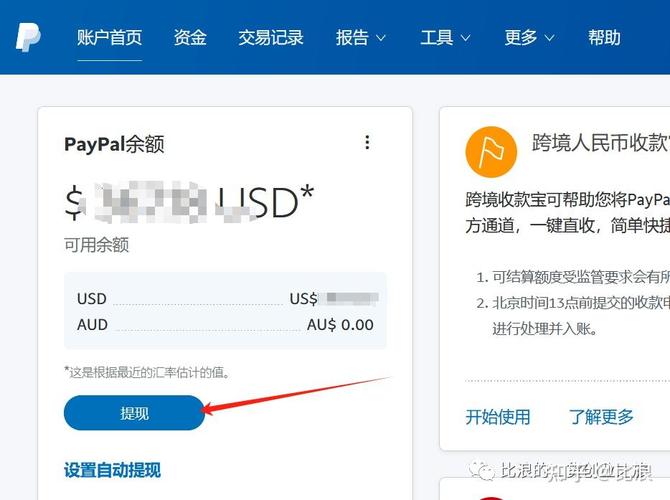
1 注册开发者账号
如果你还没有 PayPal 开发者账号,请先注册一个。
2 创建应用
- 登录 PayPal 开发者控制台。
- 点击 "Create App"(创建应用)。
- 为你的应用命名("My Android App"),选择应用类型("Merchant" 商户类型通常用于接收付款)。
- 选择 "Sand Box" 环境(这是用于测试的沙箱环境)。
3 获取客户端 ID
创建应用后,你会看到一个详情页面,你需要复制 Client ID,这个 ID 是你的应用在 PayPal 系统中的唯一标识。
- Live Client ID: 用于生产环境。
- Sandbox Client ID: 用于测试环境,我们这里使用 Sandbox ID。
4 配置应用签名
对于 Android 应用,为了安全地连接到 PayPal,你需要配置应用的签名。
- 在应用的详情页面,找到 "Android Package Name" 和 "Signature" 字段。
- 获取你的应用签名:
- 在 Android Studio 中,打开你的项目。
- 进入
Tools->Android->Sign in Package。 - 选择你的
debug或release版本的 APK 文件(通常在app/build/outputs/apk/目录下)。 - 系统会生成你的应用签名(SHA-1 指纹)。
- 将签名添加到 PayPal:
- 回到 PayPal 开发者控制台,将你刚刚获取到的 SHA-1 签名 粘贴到 "Signature" 输入框中。
- 确保 Android Package Name 与你
app/build.gradle文件中的applicationId完全一致。
项目设置
1 创建新项目
在 Android Studio 中创建一个新的项目,选择 "Empty Activity" 模板。

2 添加 SDK 依赖
打开你的 app/build.gradle (Module: app) 文件,在 dependencies 代码块中添加 PayPal Android SDK 的依赖。
dependencies {
    // ... 其他依赖
    implementation 'com.paypal.sdk:paypal-android-sdk:2.23.0' // 请使用最新版本
}
点击 "Sync Now" 同步项目。
3 配置 AndroidManifest.xml
在 AndroidManifest.xml 文件中,你需要添加互联网权限和 PayPal SDK 所需的 activity 声明。
<?xml version="1.0" encoding="utf-8"?>
<manifest xmlns:android="http://schemas.android.com/apk/res/android"
    package="com.example.paypalintegration">
    <!-- 互联网权限 -->
    <uses-permission android:name="android.permission.INTERNET" />
    <application
        android:name=".MyApplication"
        android:allowBackup="true"
        android:icon="@mipmap/ic_launcher"
        android:label="@string/app_name"
        android:roundIcon="@mipmap/ic_launcher_round"
        android:supportsRtl="true"
        android:theme="@style/Theme.PayPalIntegration">
        <activity
            android:name=".MainActivity"
            android:exported="true">
            <intent-filter>
                <action android:name="android.intent.action.MAIN" />
                <category android:name="android.intent.category.LAUNCHER" />
            </intent-filter>
        </activity>
        <!-- PayPal SDK 所需的 Activity -->
        <activity
            android:name="com.paypal.checkout.OnboardingActivity"
            android:configChanges="orientation|keyboardHidden|keyboard|screenSize|smallestScreenSize|locale"
            android:exported="true"
            android:theme="@android:style/Theme.Translucent.NoTitleBar" />
        <activity
            android:name="com.paypal.checkout.SdkPreviewActivity"
            android:configChanges="orientation|keyboardHidden|keyboard|screenSize|smallestScreenSize|locale"
            android:exported="true"
            android:theme="@android:style/Theme.Translucent.NoTitleBar" />
    </application>
</manifest>
4 处理网络请求和混淆
现代 Android 版本(Android 9+)默认使用 HTTPS,确保你的网络请求都通过 HTTPS 进行。
对于代码混淆,如果你启用了 ProGuard/R8,请确保不要混淆 PayPal SDK 的类,在 proguard-rules.pro 文件中添加以下规则:
# PayPal SDK
-dontwarn com.paypal.**
-keep class com.paypal.** { *; }
集成代码
1 初始化 PayPal SDK
为了在应用启动时初始化 SDK,最好的地方是自定义的 Application 类。
- 创建一个
MyApplication.kt类:
// MyApplication.kt
package com.example.paypalintegration
import android.app.Application
import com.paypal.checkout.PayPalCheckout
import com.paypal.checkout.config.Environment
import com.paypal.checkout.createorder.CurrencyCode
import com.paypal.checkout.createorder.UserAction
class MyApplication : Application() {
    override fun onCreate() {
        super.onCreate()
        // 初始化 PayPal SDK
        PayPalCheckout.setConfig(
            buildConfig {
                environment = Environment.SANDBOX // 使用沙箱环境
                clientId = "YOUR_SANDBOX_CLIENT_ID" // 替换成你的沙箱 Client ID
                // currency = CurrencyCode.USD // 可选:设置默认货币
                // userAction = UserAction.PAY_NOW // 可选:设置用户操作,例如直接进入支付页面
            }
        )
    }
}
重要: 将 YOUR_SANDBOX_CLIENT_ID 替换成你在第一步中获取的沙箱 Client ID。
- 在
AndroidManifest.xml中为<application>标签添加name属性:
<application
    android:name=".MyApplication"
    ... >
    ...
</application>
2 实现单次支付
我们将在 MainActivity 中实现一个简单的单次支付流程。
打开 MainActivity.kt,修改如下:
// MainActivity.kt
package com.example.paypalintegration
import android.os.Bundle
import android.widget.Button
import androidx.appcompat.app.AppCompatActivity
import com.paypal.checkout.createorder.PayPalCreateOrderCallback
import com.paypal.checkout.createorder.PayPalCreateOrderResult
import com.paypal.checkout.createorder.ShippingAddress
import com.paypal.checkout.createorder.ShippingAddressOption
import com.paypal.checkout.createorder.UserAction
import com.paypal.checkout.createorder.CurrencyCode
import com.paypal.checkout.order.OrderIntent
import com.paypal.checkout.paymentbutton.PayPalButton
class MainActivity : AppCompatActivity() {
    override fun onCreate(savedInstanceState: Bundle?) {
        super.onCreate(savedInstanceState)
        setContentView(R.layout.activity_main)
        val payPalButton: PayPalButton = findViewById(R.id.payPalButton)
        payPalButton.setup(
            createOrder = { createOrderParams ->
                // 在这里创建你的订单
                createOrderParams.createOrder(OrderIntent.CAPTURE) {
                    // 返回一个唯一的订单号
                    // 在实际应用中,这个 ID 应该来自你的服务器
                    "YOUR_ORDER_ID_${System.currentTimeMillis()}"
                }
            },
            onApprove = { approval ->
                // 用户批准支付后,捕获款项
                approval.orderActions.capture { captureOrderResult ->
                    // 支付成功!
                    // captureOrderResult 是一个包含支付详情的对象
                    runOnUiThread {
                        // 更新 UI,例如显示成功消息
                        // Toast.makeText(this, "支付成功!订单ID: ${captureOrderResult.orderId}", Toast.LENGTH_LONG).show()
                        println("支付成功!订单ID: ${captureOrderResult.orderId}")
                    }
                }
            },
            onCancel = {
                // 用户取消了支付
                runOnUiThread {
                    // 更新 UI,例如显示取消消息
                    // Toast.makeText(this, "支付已取消", Toast.LENGTH_SHORT).show()
                    println("支付已取消")
                }
            },
            onError = { errorInfo ->
                // 发生错误
                runOnUiThread {
                    // 更新 UI,例如显示错误消息
                    // Toast.makeText(this, "支付错误: ${errorInfo.errorName}", Toast.LENGTH_LONG).show()
                    println("支付错误: ${errorInfo.errorName}, ${errorInfo.message}")
                }
            }
        )
    }
}
创建布局文件 activity_main.xml:
<!-- res/layout/activity_main.xml -->
<?xml version="1.0" encoding="utf-8"?>
<LinearLayout xmlns:android="http://schemas.android.com/apk/res/android"
    xmlns:app="http://schemas.android.com/apk/res-auto"
    android:layout_width="match_parent"
    android:layout_height="match_parent"
    android:gravity="center"
    android:orientation="vertical"
    android:padding="16dp">
    <com.paypal.checkout.paymentbutton.PayPalButton
        android:id="@+id/payPalButton"
        android:layout_width="wrap_content"
        android:layout_height="wrap_content"
        app:buttonType="pay" // 可以是 "pay", "buynow", "checkout"
        app:logoType="secondary" // 可以是 "primary", "secondary", "monochrome" />
</LinearLayout>
3 实现未来支付
未来支付允许用户授权你的应用在将来无需再次确认的情况下从其 PayPal 账户扣款,这需要更复杂的后端流程,但前端部分也很简单。
-
后端准备: 你的服务器需要生成一个
PayPal-Partner-Attribution-Id,并调用 PayPal API 来获取一个billingAgreementToken,这个 token 会被传递给客户端。 -
前端代码: 修改
MainActivity.kt,添加一个用于未来支付的按钮。
// 在 MainActivity.kt 中添加
import android.widget.Toast
// ... 其他 import
class MainActivity : AppCompatActivity() {
    override fun onCreate(savedInstanceState: Bundle?) {
        super.onCreate(savedInstanceState)
        setContentView(R.layout.activity_main)
        val payPalButton: PayPalButton = findViewById(R.id.payPalButton)
        val futurePaymentButton: Button = findViewById(R.id.futurePaymentButton)
        // 单次支付逻辑 (同上)
        payPalButton.setup(...)
        futurePaymentButton.setOnClickListener {
            // 在实际应用中,这里应该从你的服务器获取一个 billingAgreementToken
            // val token = "YOUR_BILLING_AGREEMENT_TOKEN_FROM_SERVER"
            // 为了演示,我们使用一个假的 token
            val token = "YOUR_BILLING_AGREEMENT_TOKEN"
            PayPalCheckout.startBillingAgreement(
                this,
                token,
                { approval ->
                    // 用户授权成功
                    approval.billingAgreementActions.getBillingAgreement { result ->
                        runOnUiThread {
                            // result.billingAgreementId 是你未来可以用来扣款的 ID
                            Toast.makeText(this, "未来支付授权成功!ID: ${result.billingAgreementId}", Toast.LENGTH_LONG).show()
                            println("未来支付授权成功!ID: ${result.billingAgreementId}")
                        }
                    }
                },
                { errorInfo ->
                    runOnUiThread {
                        Toast.makeText(this, "授权错误: ${errorInfo.message}", Toast.LENGTH_LONG).show()
                        println("授权错误: ${errorInfo.message}")
                    }
                }
            )
        }
    }
}
更新布局文件 activity_main.xml:
<!-- res/layout/activity_main.xml -->
<LinearLayout ...>
    <com.paypal.checkout.paymentbutton.PayPalButton
        android:id="@+id/payPalButton"
        ... />
    <Button
        android:id="@+id/futurePaymentButton"
        android:layout_width="wrap_content"
        android:layout_height="wrap_content"
        android:layout_marginTop="20dp"
        android:text="授权未来支付" />
</LinearLayout>
完整代码示例
MyApplication.kt: 见 3.1 节。MainActivity.kt: 见 3.2 和 3.3 节的完整代码。activity_main.xml: 见 3.3 节的布局文件。AndroidManifest.xml: 见 2.3 节。build.gradle: 见 2.2 节。
测试
1 沙箱测试
-
创建沙箱测试账户:
- 登录 PayPal 开发者控制台。
- 在 "Accounts" (账户) 标签页下,你可以创建 "Buyer" (买家) 和 "Seller" (卖家) 的沙箱测试账户。
- 记录下这些账户的邮箱和密码。
-
运行应用:
- 在 Android Studio 中运行你的应用。
- 点击 "PayPal" 按钮,应用会跳转到 PayPal 的支付页面。
- 在沙箱登录页面,使用你创建的 买家账户 登录。
- 你可以使用 PayPal 提供的测试卡号(
4111111111111111)进行支付,无需输入真实卡号。 - 支付成功后,你可以在沙箱账户的 "Transaction" (交易) 页面看到这笔交易记录。
2 常见问题
- "Invalid configuration" 错误: 检查
MyApplication中的clientId是否正确,以及AndroidManifest.xml中的package name和 PayPal 控制台配置的Android Package Name是否完全一致。 - "User canceled" 错误: 这是正常情况,用户点击了取消按钮。
- 应用崩溃: 检查网络权限是否已添加,以及是否正确初始化了 SDK。
- 支付成功但未收到回调: 确保
onApprove中的capture逻辑被正确调用。
通过以上步骤,你已经成功地将 PayPal SDK 集成到了你的 Android 应用中,并实现了单次支付和未来支付的授权流程。
关键点回顾:
- 准备工作是关键: 正确配置开发者账号、应用和签名是成功集成的前提。
- 使用沙箱环境: 在应用上线前,务必在沙箱环境中进行充分测试。
- 异步操作: 支付流程是异步的,所有回调都在主线程外执行,需要使用
runOnUiThread来更新 UI。 - 安全性: 在生产环境中,订单的创建和捕获必须通过你的后端服务器完成,以防止客户端被篡改,客户端只负责启动支付流程和接收结果。
这份教程为你提供了一个坚实的基础,你可以根据自己应用的需求进行扩展和定制。